Importing Yesplan events into Custom Post Types is a breeze with Jeero. Instead of manually copying and pasting information, your website will always have up-to-date information, including dates, prices, and ticketing.
This tutorial will show you how to connect your WordPress website to Yesplan. You will then import your events into the Custom Post Types plugin. When finished, you will have a website that provides an always-updated overview of your events, including full descriptions, images, prices and categories.
Contact Yesplan support to abtain an Yesplan API key.
Select Yesplan in the Ticketing solution field:
Click on Save Changes.
Enter your Yesplan base URL and API key:
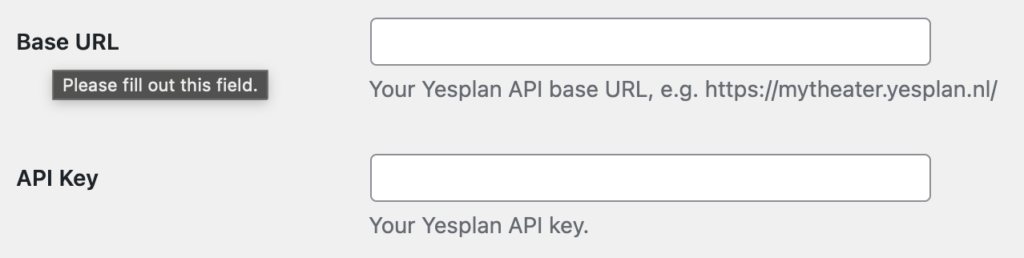
Click on Save Changes.
Click on the Custom Post Types tab.
Tick the Enable Custom Post Types import checkbox:
The sync is now active. Your events will be visible in Custom Post Types within 5 minutes:
Jeero's free plan allows you to sync up to ten upcoming events at any given time. Ideal for small organisations and testing purposes.
Paid plans begin at € 30 per month or € 300 per year and allow you to sync up to 1.000 upcoming events.
In this tutorial, you learned how to connect Custom Post Types to Yesplan and have all of your events automatically published on your WordPress website. Jeero handles the synchronization between the two and saves you from manually copy-pasting all of the event details after each update.
I hope you found this guide useful. If you require any additional information, please do not hesitate to contact me . I'm also curious if there are any ticketing or calendar plugins that I should include.
Please contact me so I can add your ticketing solution too.
